The setup wizard, step by step
What each question in the setup wizard does, and where to change it later.
Last updated · 24 Oct 2026Getting started
The wizard runs the first time you open PixelChat. It takes a few minutes, and everything in it can be changed later. It has five numbered cards.
1. Your store
What does your store sell? A sentence or two in your own words, for example "Snowboards, bindings and winter gear for riders of every level." The assistant uses it to greet shoppers and describe your products. It never changes your prices, stock or policies. If your store has a description in Shopify (Online Store → Preferences), it's filled in for you to edit. If not, Suggest from my products writes one from your product titles for you to check.
Industry. Choose the closest match to what you sell. This sets the assistant's starting template — how it talks about products, and the default wording of its proactive messages. If nothing fits, choose Other / general.
2. Appearance
Assistant name. The name shoppers see at the top of the chat, for example "Mia" or "Northfold Help".
Colours. Your brand colour styles the chat header, your shoppers' messages, the buttons, links and the chat bubble. The text colour on brand is used for the text and icons that sit on your brand colour.
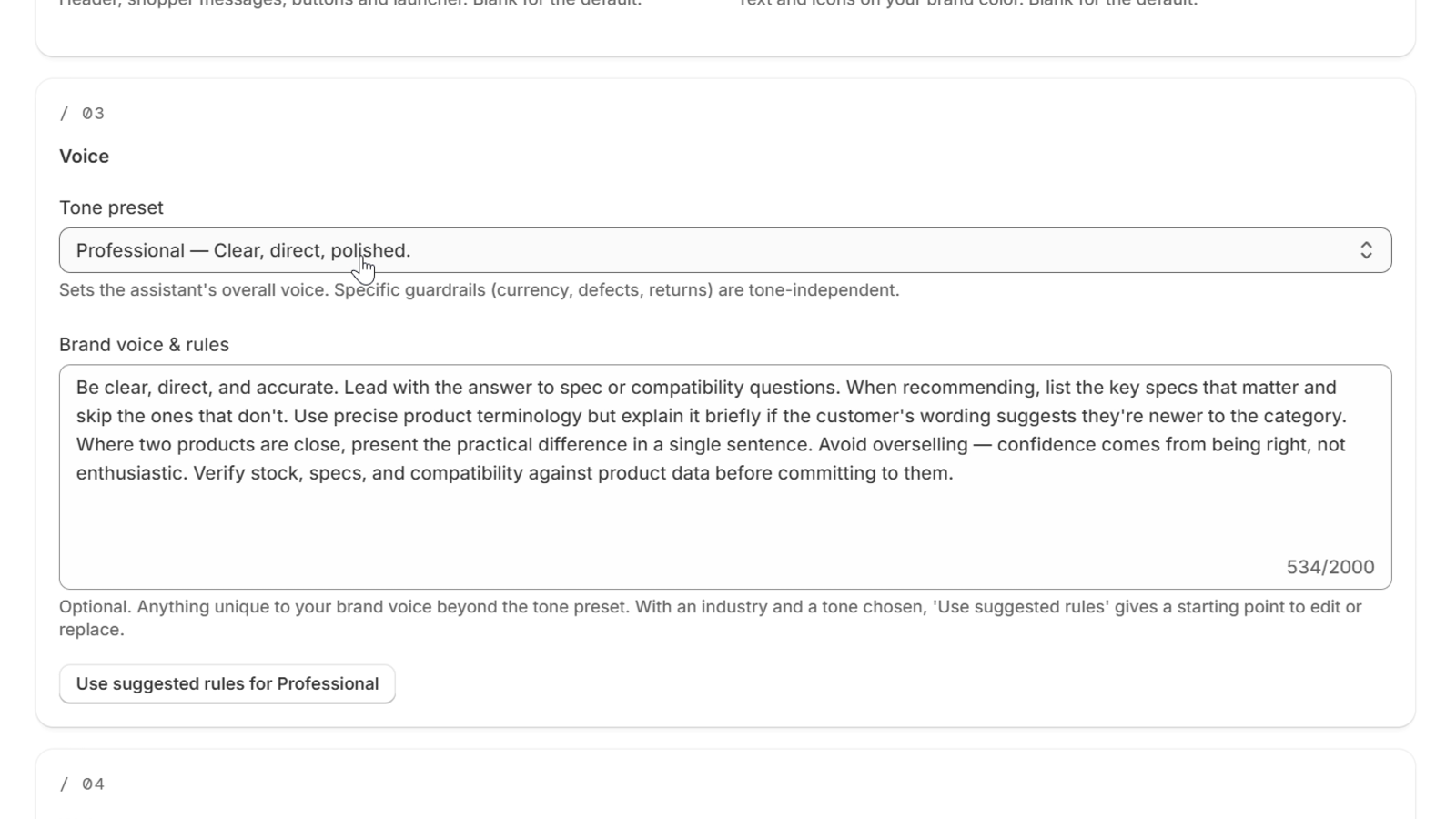
3. Voice
Tone. Friendly, Professional or Expert. You can also add brand-voice rules — for example "never use exclamation marks" or "call customers 'guests'".
 (opens the full-size image)
4. Welcome
Welcome message. The first message shoppers see when they open the chat. Add {name} to greet customers who are logged in to your store by their first name. Once you've described your store, the wizard suggests a welcome message to match. Keep it, edit it or write your own.
5. How shoppers reach your team
Add a WhatsApp number, an email address for shopper messages, or both. When the assistant can't help, these become the buttons shoppers use to reach you. You need at least one.
When you're done, click Save in the bar at the top of the page.
Finishing the wizard is required. The chat stays hidden on your storefront until it's complete.
Changing things later: open Settings in PixelChat. Every answer from the wizard can be changed there. If you skipped the store description, the setup guide on the PixelChat home page has a step for it, Tell PixelChat what your store sells. It's optional: choose Skip to set it aside in that browser.