Getting started with PixelChat
The five steps from installing the app to having the assistant live on your storefront.
Last updated · 24 Oct 2026Getting started
Setting up PixelChat takes five steps. None of them need code.
1. Install from the Shopify App Store
Find PixelChat on the Shopify App Store and install it.
2. Complete the setup wizard
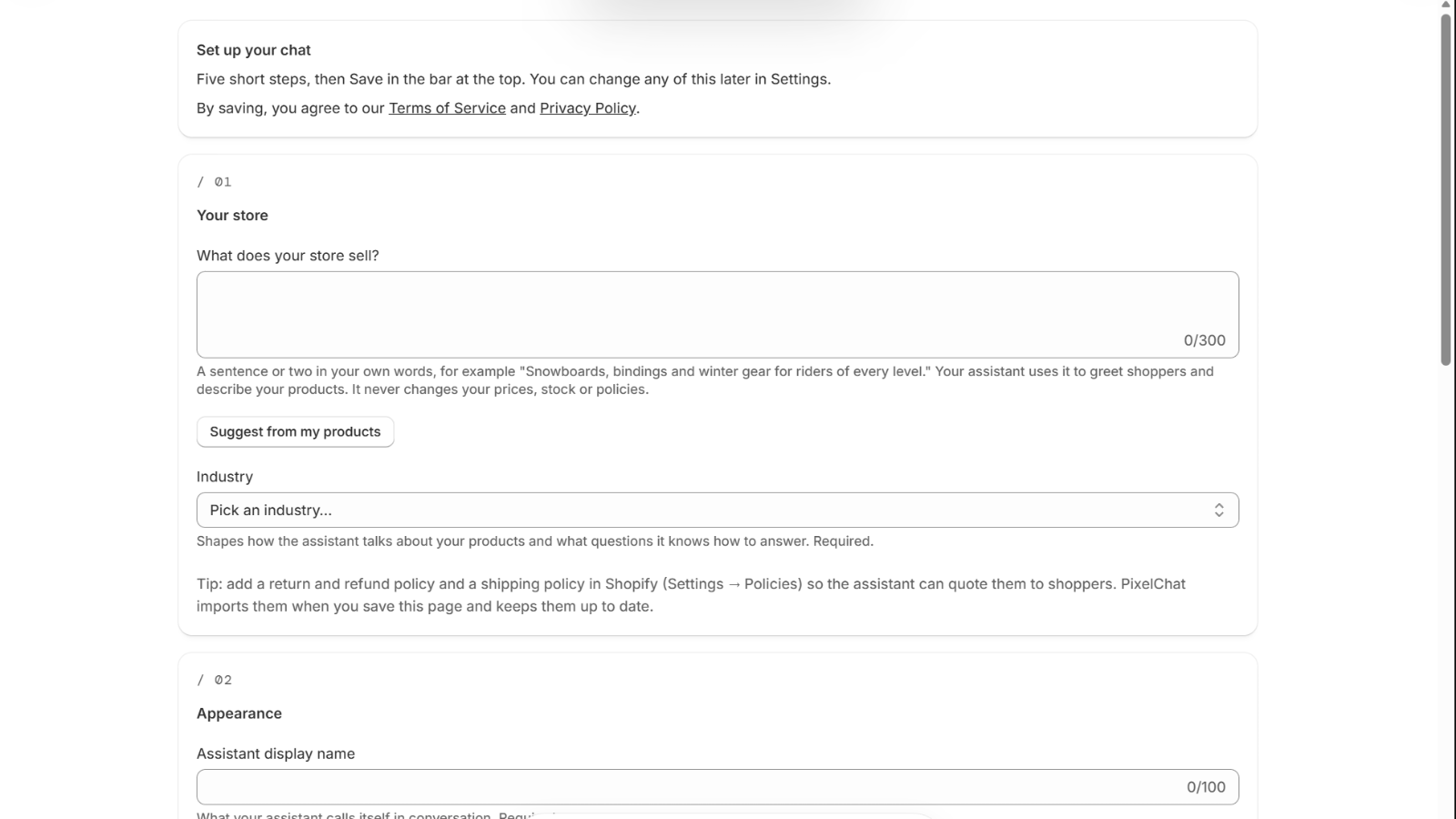
The first time you open PixelChat, a short wizard asks for:
- What your store sells — a sentence or two the assistant uses to greet shoppers and describe your products
- Industry — sets a starting template for what you sell
- Assistant name — the name shoppers see in the chat
- Colours — so the chat matches your store
- Tone — Friendly, Professional or Expert, with optional brand-voice rules
- Welcome message — the first thing the assistant says
- How shoppers can reach you — a WhatsApp number, an email address for messages, or both
Then choose a plan on the Plans page. Every plan starts with a 14-day free trial. See Plans and pricing.
The chat won't appear on your storefront until the wizard is finished and your plan is active.
 (opens the full-size image)
3. Switch on the app embed
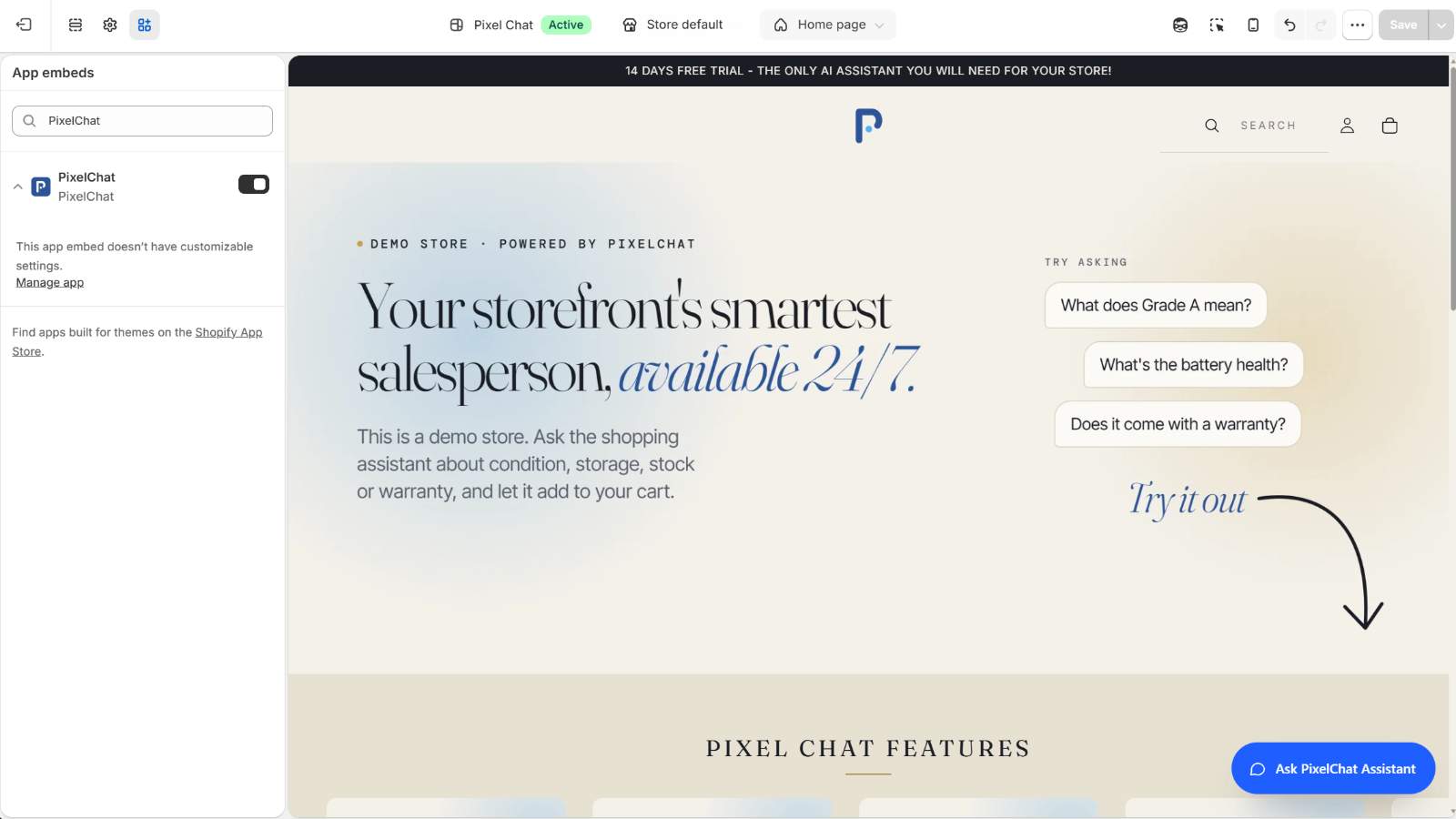
On the PixelChat home page, the setup guide's first step, Turn on the chat in your theme, shows whether the chat is on. If it isn't, click Open theme editor. The theme editor opens with the PixelChat embed already switched on — just click Save.
To switch it on by hand instead:
- In your Shopify admin, go to Online Store → Themes.
- On your current theme, click Customize.
- Open App embeds.
- Switch on PixelChat.
- Click Save.
 (opens the full-size image)
4. Check your Shopify policies
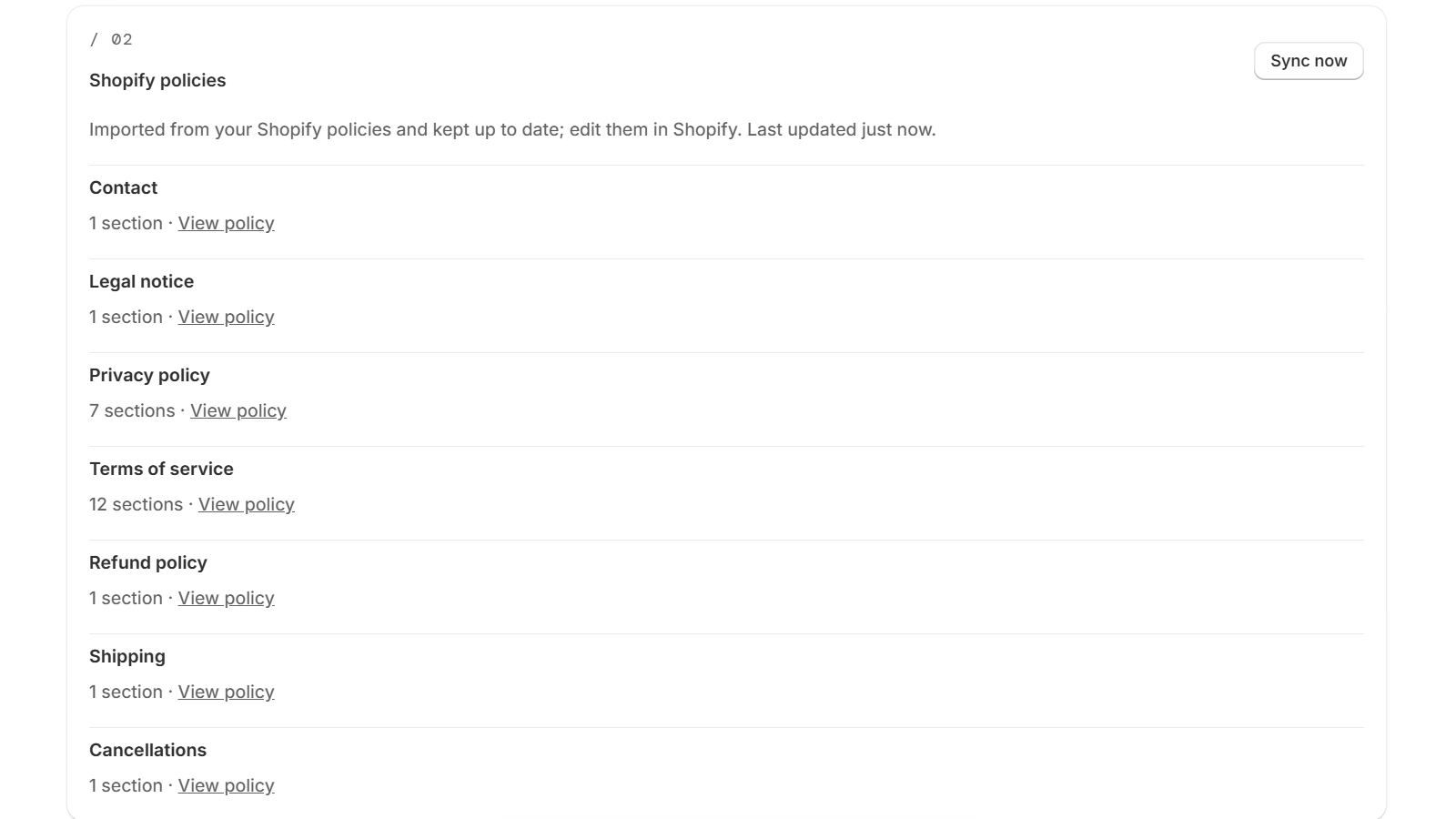
PixelChat imports your published Shopify policies — shipping, refund, privacy, terms and similar — automatically when you install it and when you finish the wizard, and keeps them up to date. There's nothing to click.
New Shopify stores have no refund or shipping policy by default. If yours is missing one, the setup guide on the PixelChat home page shows the step Add return and shipping policies in Shopify: create the policy in your Shopify admin under Settings → Policies, and the assistant can quote it to shoppers within seconds of you saving it.
 (opens the full-size image)
5. Add your FAQs
Still in Knowledge, add the questions you answer most often by email — sizing, delivery times, warranties, care instructions. You can add more at any time.